
How to Use PS5 Controller Wirelessly on PC
You can use a PS5 DualSense controller on PC without owning a PlayStation 5. If your PC supports Bluetooth, you should be able to connect the controller wirelessly quite easily. However, if you manage to connect the controller, it doesn’t mean that all games will recognize all commands from it or utilize its advanced features like haptic feedback and adaptive triggers.
In this guide, you will learn how to connect a PS5 controller to PC via Bluetooth, find out how to troubleshoot any common connection issues with it, and figure out whether you need Haute Adapter, a dedicated wireless receiver.
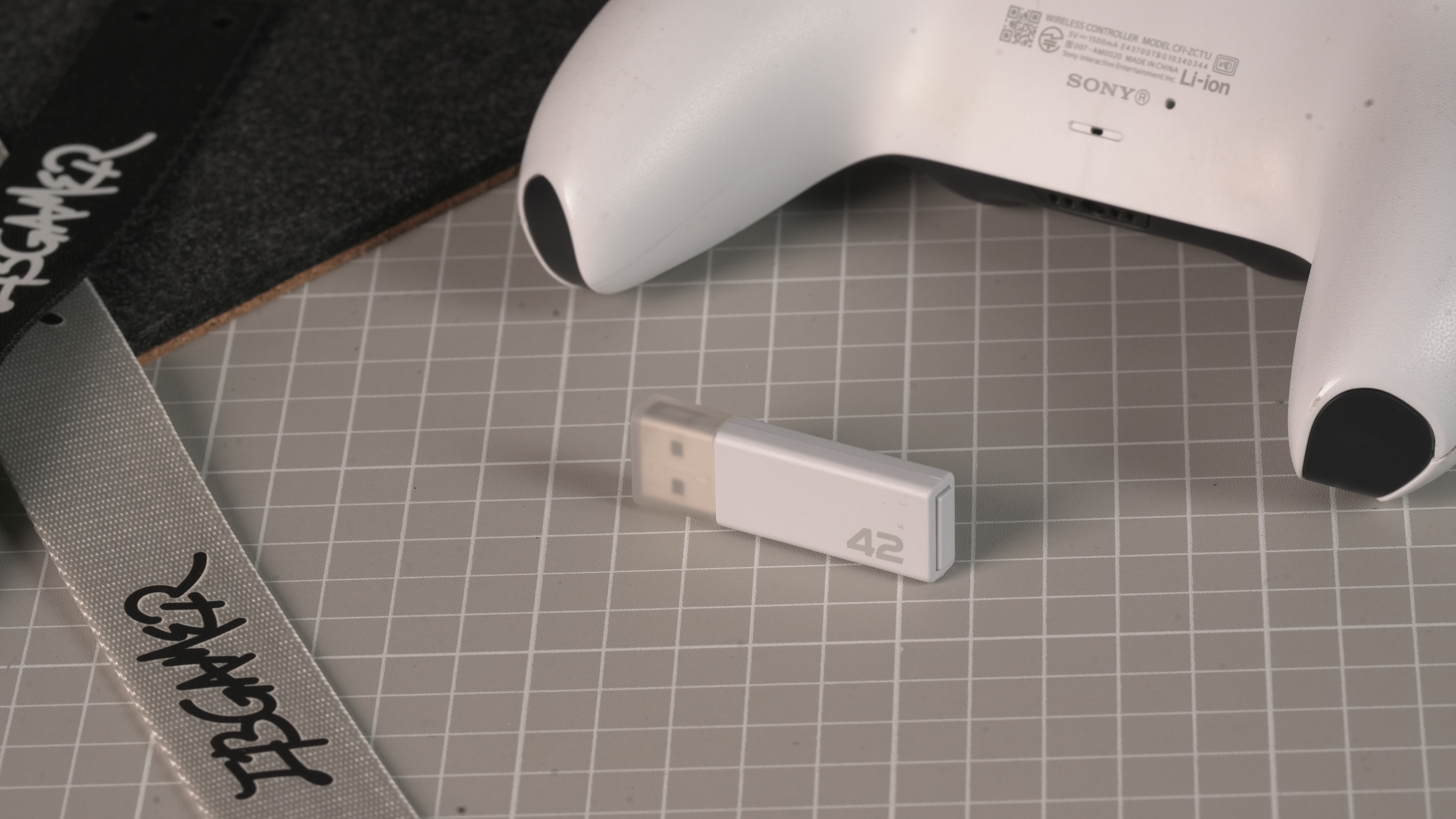
Can You Connect PS5 Controller on PC Wirelessly?
Yes. You can connect a PS5 DualSense controller to a Windows PC via Bluetooth without owning a PS5 console or buying a dedicated wireless receiver.
Before you begin, ensure that you have Bluetooth on your computer. Most laptops have Bluetooth built in, but some desktop computers might require a Bluetooth adapter for it to work. However, wireless connection and game compatibility are two different things. Your computer may successfully connect to the controller, but some games might not recognize every button or support all of the DualSense’s advanced features.
How to Use PS5 Controller on PC via Bluetooth
Pairing a DualSense controller with a Windows PC usually takes only a few minutes. Follow these steps to establish a wireless connection.
Step 1: Put Your DualSense Controller into Pairing Mode
First, make sure your controller is not actively connected to another device. Press and hold the Create button and the PS button at the same time. The Create button is the small button to the left of the touchpad.
Continue holding both buttons until the light bar starts flashing. This indicates that the controller is in Bluetooth pairing mode and ready to be discovered.
If the controller reconnects to another device instead, disconnect it from that device and try again.
Step 2: Open Bluetooth Settings on Your PC
On Windows 11, open Settings → Bluetooth & devices and make sure Bluetooth is turned on.
Select Add device, choose Bluetooth, and wait for Windows to search for nearby devices.
On Windows 10, open Settings → Devices → Bluetooth & other devices, then select Add Bluetooth or other device and choose Bluetooth.
Step 3: Choose Your Wireless Controller
Find the Wireless Controller on your device list and select it, following all prompts onscreen to finish pairing.
Once Windows has confirmed that the connection is up and running, you’ll be able to use the controller. Go ahead and launch a game or compatible application to test the device.
If the controller pairs properly, but operates improperly during gameplay, however, this doesn’t necessarily indicate that Bluetooth has stop functioning. The issue may be related to the game’s input settings or controller compatibility.
What If PS5 Controller Won’t Connect to Computer?
Usually, Bluetooth pairing is not complicated, but there may be problems in establishing the connection. The correct solution will depend on whether Windows can find the controller, whether the connection is maintained constantly, and whether the game recognizes your inputs.
Windows Can’t Find the Controller
Whenever the wireless controller stops appearing in Bluetooth devices list, you are required to do the following:
1. The controller’s light bar should be flashing, which shows that it is in pairing mode.
2. Turn the Bluetooth off and on again in Windows.
3. Move the controller closer to your PC and reduce potential sources of wireless interference.
4. Restart the controller and enter into pairing mode again.
5. Check if there is any problem with the Bluetooth driver of your PC.
If your computer doesn’t have Bluetooth hardware, you’ll need a compatible Bluetooth adapter or another supported wireless connection solution.
The Controller Connects but Doesn’t Work in the Game
Even if the Bluetooth connection works well, it does not necessarily mean that all the games will read controller input the same way.
First, check the controller settings of the game. If you are using Steam, please open up the controller settings of the game and explore the Steam Input settings option. Depending on the game, Steam Input converts the input from the controller into a form that is recognized by the game. For games that are not on Steam, check if they are compatible with DualSense controllers or need a compatible input-mapping program to use with them. Only use one input-mapping program unless absolutely necessary, as overlapping input systems are likely to lead to double input or strange input.
The Connection Keeps Dropping
Inconsistent connectivity could be a result of poor Bluetooth signal, driver issues, interference from electronic devices, or the controller’s battery.
Solutions could include charging the controller, moving closer to the computer and updating Bluetooth drivers. Depending on your PC’s OS, check for new updates on the official support site or Windows.
If you are still facing problems, try connecting your controller with another device that it is compatible with to see if it is a controller malfunction or wireless connectivity issue of your PC.
Does the DualSense Work Fully on PC?
The DualSense works well for many PC games, but not every game supports every feature. Basic button inputs and standard controller functions are generally easier to use than advanced features, which may require specific game support or additional configuration.
Standard Buttons and Analog Controls
The face buttons, directional controls, analog sticks, and triggers can work in compatible PC games. However, the exact experience depends on how the game handles controller input.
Some games display PlayStation button prompts, while others show Xbox-style prompts even when you’re using a DualSense. This is often a game-specific limitation rather than a problem with your controller.
Haptic Feedback and Adaptive Triggers
The DualSense has better features than rumble features. Haptic feedback provides a number of sensations, and adaptive triggers change resistance of controllers in response to in-game events.
On PC, the use of these features depends on the game and how it is connected. The controller works fine for simple gameplay without getting all the benefits of feedback features.
If you care about these features, make sure to check that your game supports DualSense features, as not all games do. For gamers who would like to have other feedback control features, Haute Adapter offers the technology that generates an audio-driven vibration and transforms the conventional vibration of the controller into HD haptic vibrations.
Touchpad, Gyroscope, and DualSense Edge Features
The touchpad and gyroscope work as intended only in compatible games or applications, and additional software may be needed for certain configurations.
The DualSense Edge also includes Fn buttons and rear paddles, whose functionality on PC depends on the game and the connection solution. For users who want additional configuration options, Haute Adapter supports wireless DualSense Edge use on PC and provides settings for its extra controls, along with customizable button mapping and touchpad modes.
Bluetooth vs. a PS5 Controller Wireless Receiver
Bluetooth is a convenient way to connect a PS5 DualSense controller to PC without extra hardware. A dedicated wireless receiver, on the other hand, may offer controller-specific features that aren’t available through a standard Bluetooth connection. The actual benefits depend on the receiver, so check its specifications before buying.
| Feature | Direct Bluetooth | Dedicated Wireless Receiver |
| Additional hardware | Not needed if your PC has Bluetooth | Requires a compatible receiver |
| Setup | Pair through Windows Bluetooth settings | Follow the receiver’s setup instructions |
| Basic wireless gameplay | Supported in compatible games | Depends on receiver and game compatibility |
| Additional configuration options | May require additional software | Depends on the receiver’s supported features |
| DualSense Edge compatibility | Depends on software and game support | Must be verified for the specific receiver |
Bluetooth is a practical choice for players who want a simple wireless connection without additional hardware. A dedicated receiver may be worth considering if you need specific configuration features, but compatibility varies by product. Check the receiver’s supported controller models, operating systems, and features before buying.
Conclusion
You can connect a PS5 DualSense controller to a PC without a wire as long as your PC has Bluetooth technology. However, you may not find a lot of games that utilize the DualSense controller at this point, so you should verify that the game you use is sufficiently supportive of the device before attempting the connection. If you are looking for additional configuration possibilities, you may consider using a special wireless receiver, like Haute Adapter, provided that it supports functions you need for playing your games.