
Haute Adapter 4DS: The Complete Guide to Features and Setup
If you enjoy using PlayStation 5 DualSense or DualSense Edge controller but primarily play games on PC, you may want more than a basic wireless connection. You may also want access to advanced controller features, flexible input options, and settings that can be adjusted to suit different games.
The Haute Adapter 4DS is a wireless adapter that lets you connect your DualSense or DualSense Edge controller to PC while making a range of advanced controller features available. It also offers different controller modes, allowing your PC to recognize the connected controller as DualSense, DualSense Edge, Xbox 360, or Xbox One controller to suit different games and input requirements.
Beyond wireless connectivity and controller compatibility, 4DS supports HD haptic feedback, adaptive triggers, audio management, custom button mapping, joystick adjustments, and other configuration options.
Through Haute Engine, its browser-based configuration tool, users can manage these features without installing separate configuration software for basic setup.
In this guide, we’ll take a closer look at what Haute Adapter 4DS offers, how its main features work, how to set it up, and what you should know about compatibility before using it.
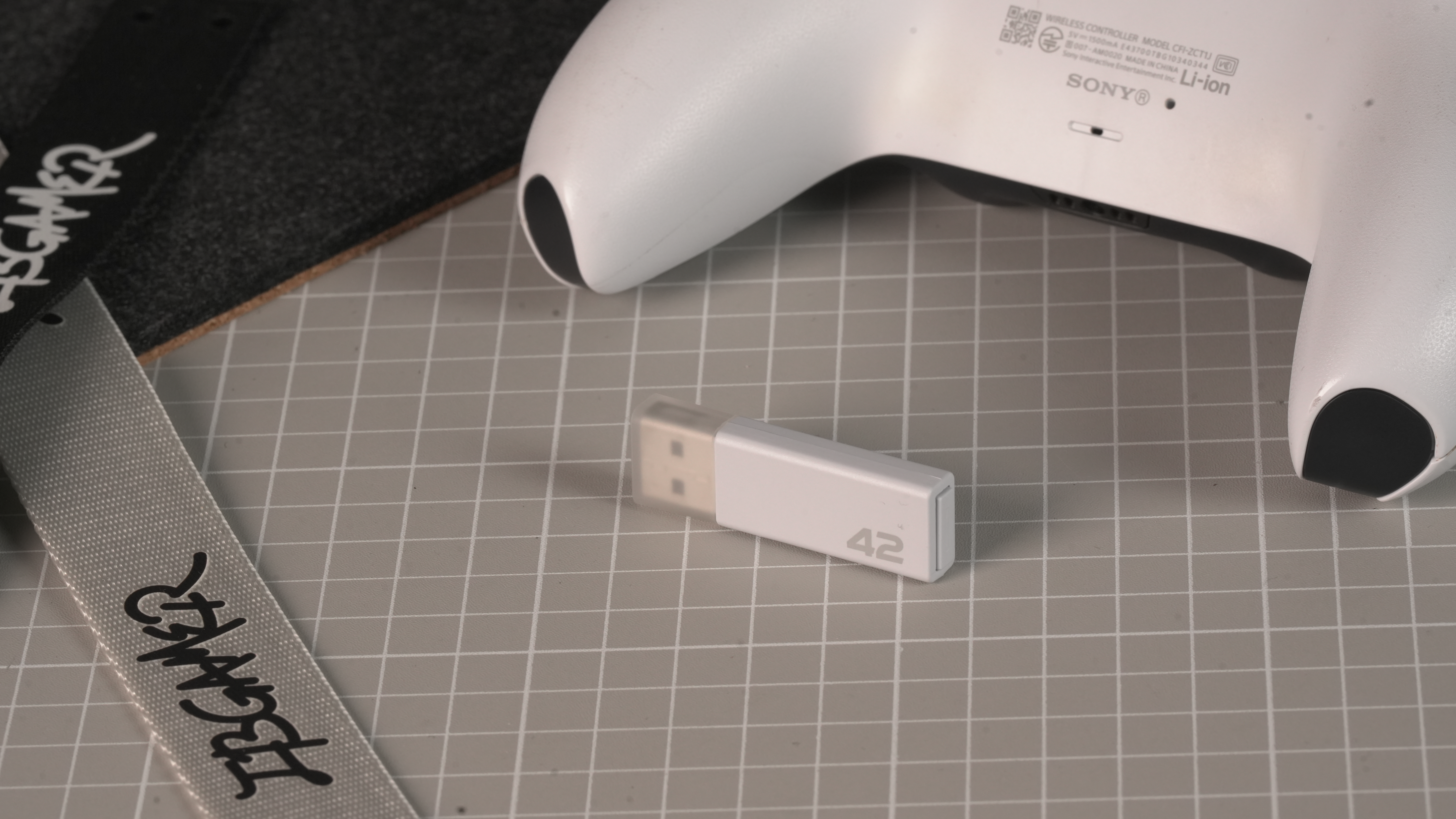
1. What Is Haute Adapter 4DS?
Haute Adapter 4DS is a wireless controller adapter designed to connect supported PlayStation controllers, including the DualSense and DualSense Edge, to PC.
Its purpose goes beyond simply connecting a controller wirelessly. It provides different controller operating modes and a range of customization options, allowing users to adjust how their controller interacts with their computer and games.
One of its main features is support for multiple controller modes:
- DS5 Mode: Uses the DualSense controller protocol.
- DSE Mode: Uses the DualSense Edge controller protocol.
- Automatic DS Recognition: Automatically identifies whether the connected controller is a DualSense or DualSense Edge.
- Xbox 360 Mode: Allows the PC to recognize the controller as an Xbox 360 controller.
- Xbox One Mode: Provides Xbox One controller compatibility, including support for independent trigger vibration in supported games.
Haute Adapter 4DS also works with Haute Engine, a browser-based tool for configuring controller modes, button mappings, audio, vibration, joystick settings, firmware, and other features.
This combination of wireless connectivity and configuration options makes it useful for players who want greater control over their PC controller setup.
2. Key Features of Haute Adapter 4DS
The main strength of Haute Adapter 4DS is the range of features available beyond basic controller connectivity. From controller compatibility to input customization and audio management, it offers several ways to adapt the controller experience to different games and preferences.
2.1 HD Haptic Feedback and Adaptive Triggers
One of the most notable reasons players choose a DualSense controller is its advanced feedback technology.
Unlike traditional controller vibration, which generally relies on basic rumble effects, the DualSense features more detailed haptic feedback and adaptive triggers designed to provide different physical sensations during gameplay.
Haute Adapter 4DS supports native HD haptic feedback and adaptive trigger functionality in DS5 and DSE modes.
HD Haptic Feedback
HD haptic feedback can reproduce more detailed vibration effects than conventional rumble. Depending on the game, players may experience different feedback for environmental effects, impacts, movement, and other in-game events.
The adapter also provides vibration-related settings through Haute Engine.
For example, the HD vibration gain can be adjusted from 0.2 to 2.0, with a default value of 1.1. This allows users to adjust the overall feedback strength according to their preferences.
Adaptive Triggers
The DualSense adaptive triggers can change the resistance of the L2 and R2 buttons in supported games.
For example, a game may use different trigger resistance to represent drawing a bow, operating a weapon, or pressing a vehicle’s accelerator. The actual effect depends on how the game implements adaptive trigger support.
Haute Adapter 4DS supports this feature in DS5 and DSE modes, allowing players to use compatible DualSense trigger effects on PC.
It is important to understand that adapter support alone does not guarantee that every PC game will provide adaptive triggers or HD haptic feedback. The game and its input implementation must also support the relevant features.
2.2 Advanced Audio Support
The DualSense is more than a controller with buttons and vibration motors. It also includes a built-in speaker, microphone, and a 3.5mm audio connection.
Haute Adapter 4DS provides audio management options for these controller features.
Supported audio functions include:
- Controller speaker output.
- 3.5mm headphone support.
- Microphone input and audio routing.
- Audio volume control.
- Adjustable audio buffer settings.
When a 3.5mm headset is connected to the controller, the audio output can switch automatically.
Users can also configure the audio path and adjust the audio buffer length through Haute Engine. These settings are intended to balance audio performance and HD haptic feedback stability.
For players who use a headset or microphone through their controller, these options provide more flexibility than a basic wireless connection.
Audio behavior may vary depending on the controller mode and operating system. For example, Xbox One controller audio support is available, while certain speaker and headphone functions are currently unavailable in Linux Xbox One mode.
2.3 Custom Button Mapping
Different games often require different control layouts. Some players may also prefer keyboard or mouse inputs for specific actions.
Haute Adapter 4DS provides customizable button mapping through Haute Engine.
Users can configure controller buttons and, in supported modes, map inputs to keyboard and mouse actions.
The mapping system includes:
- Custom controller button assignments.
- Keyboard and mouse mapping.
- Support for DualSense Edge Fn button mapping.
- Two configurable mapping profiles.
- Quick switching between profiles.
The two mapping profiles are particularly useful for players who regularly switch between games with different control requirements.
For example, one profile could be configured for a fighting game, while another could be used for a different game genre.
Touchpad Modes
The adapter also supports several touchpad modes, including:
- Disabled.
- Directional input.
- Left and right mouse buttons.
- Mouse mode.
- Dual-stick mode.
- Full touchpad mouse mode.
The available mouse output functionality depends on firmware support.
These options allow players to customize how the controller’s touchpad behaves instead of relying on a single fixed input method.
2.4 Joystick Settings and Performance Adjustments
Joystick behavior can have a noticeable impact on gameplay, especially in games where precise directional input matters.
Haute Adapter 4DS provides independent settings for the left and right analog sticks.
Deadzone Adjustment
Users can adjust the center deadzone and anti-deadzone independently, with both settings ranging from 0% to 50%.
The center deadzone determines how much movement around the stick’s neutral position is ignored. Increasing it can help reduce unwanted input caused by slight stick movement or drift.
The anti-deadzone setting works in the opposite direction by compensating for a portion of the input range, helping the stick register movement more readily.
Haute Engine also provides a visual comparison between physical stick input and device output, making it easier to observe the effects of adjustments.
Changes to these settings take effect immediately in DS5, DSE, and Xbox 360 modes. Xbox One mode requires the settings to be saved before they take effect.
Polling Rate Options
Haute Adapter 4DS offers three polling rate options:
- 250 Hz
- 500 Hz
- 750 Hz
In Xbox One mode, the maximum polling rate is approximately 500 Hz.
Polling rate refers to how frequently the controller reports input information. It is one factor in controller responsiveness, but it should not be confused with total end-to-end input latency.
Additional Performance Settings
Other adjustable settings include audio buffer length and USB-related options.
For example, the USB serial number feature is enabled by default to help the computer distinguish between multiple receivers. USB stealth mode is disabled by default and can be enabled to change how the receiver is presented to the system.
These settings are mainly useful for players who want more control over their hardware configuration.
2.5 Wireless Connection and Multi-Controller Support
controllers.
However, it is important to distinguish between remembering multiple controllers and connecting them simultaneously. The receiver supports switching between paired controllers, but only one controller can be connected at a time.
Once a controller has been paired, users can reconnect it by pressing the PS button, provided the controller still retains the receiver’s pairing slot.
The receiver also provides several pairing controls:
- Single press: Switch to the next remembered controller.
- Double press: Disconnect the current controller and search for a new controller to pair.
- Long press for more than 3 seconds: Clear all remembered pairings and restart the receiver.
This makes it easier to manage multiple controllers without repeating the entire pairing process every time.
The receiver’s indicator light also communicates its current status, including pairing, scanning, connection, and low controller battery warnings.
2.6 Lighting and Power Management
Haute Adapter 4DS includes several lighting and power management options.
When a DS5 or DSE controller connects successfully, the receiver can briefly display a customizable color before allowing the game to control the lighting.
The system also provides battery indicators through the controller’s player LEDs.
Users can check the battery level temporarily using a controller shortcut. The indicator can display five battery levels, with colors changing from green to yellow, orange, and red as the battery level decreases.
Additional power management options include:
- Adjustable receiver indicator light timeout.
- Controller battery warnings.
- Adjustable idle disconnection time from 0 to 60 minutes.
- Automatic power-saving behavior after the controller disconnects.
- PS-button wake-up support for compatible PC and USB configurations.
These options help users manage the receiver’s behavior and reduce unnecessary power consumption.
3. Haute Engine: A Browser-Based Configuration Tool
requiring a separate desktop application for basic configuration, users can connect the receiver through a compatible browser and access its settings directly.
The interface provides access to several configuration categories, including:
- Audio Link.
- Lighting and Power.
- Performance and Compatibility.
- Button Mapping.
- Joystick Deadzone.
- Functional Testing.
- Firmware Updates.
Controller Configuration
Users can select the controller operating mode, adjust button mappings, configure audio and vibration settings, and customize joystick behavior.
Functional Testing
Haute Engine includes a functional testing page that visualizes button, joystick, and trigger inputs.
In DS mode, users can also view touchpad, gyroscope, and acceleration-related information, as well as test lighting, vibration, and adaptive trigger functions.
The page also provides USB input reporting statistics and interval measurements. These measurements describe the reported USB input behavior and should not be interpreted as total controller-to-game latency.
Firmware Management
The browser interface displays the receiver’s firmware version and provides direct firmware updates.
Some firmware operations have specific requirements. For example, Xbox One mode must be switched back to DS5, DSE, or Automatic DS Recognition before updating. After the update, the receiver restarts and the controller must reconnect.
4. How to Set Up Haute Adapter 4DS
Getting started with Haute Adapter 4DS involves connecting the receiver, pairing a controller, and selecting the appropriate controller mode.
Step 1: Connect the Receiver
Plug Haute Adapter 4DS into an available USB port on your PC.
Open a compatible browser and visit the Haute Engine configuration page:
Use the connection option to select and authorize the receiver.
Step 2: Pair Your DualSense Controller
For the first pairing:
- Press and hold the PS and Create buttons on the DualSense controller for approximately three seconds.
- Release the buttons when the controller’s light begins flashing rapidly.
- Connect the receiver and wait for the pairing process to complete.
- The receiver’s indicator light will become solid when the controller is connected.
The initial pairing process generally takes around three to five seconds.
Step 3: Select a Controller Mode
Open the controller mode settings in Haute Engine.
Choose DS5, DSE, Automatic DS Recognition, Xbox 360, or Xbox One according to your controller and game requirements.
For players who frequently switch between DualSense and DualSense Edge, Automatic DS Recognition can simplify the process.
Step 4: Configure Your Preferred Settings
ou can now adjust the available options, including:
- Button mappings.
- Audio settings.
- Vibration settings.
- Joystick deadzones.
- Lighting and power behavior.
Most DS5, DSE, and Xbox 360 configuration changes take effect immediately. Xbox One mode requires users to save the configuration and restart the receiver before the changes become active.
Step 5: Test the Controller
Use Haute Engine’s functional testing page to check button, joystick, and trigger inputs.
You can also test supported vibration and other functions to make sure the controller is working as expected.
6. Who Is Haute Adapter 4DS For?
Haute Adapter 4DS may be useful for several types of PC players.
DualSense and DualSense Edge Users
Players who prefer the feel and layout of PlayStation controllers can use the adapter to connect supported controllers wirelessly and access different controller modes.
Players Interested in Advanced Controller Features
Those who want to use HD haptic feedback and adaptive triggers in compatible PC games may find its DS5 and DSE support particularly useful.
Players Who Like Customizing Their Controls
Button mapping, touchpad modes, joystick deadzone adjustments, and multiple configuration profiles provide additional control over how the controller behaves.
Players Who Switch Between Different Games
Different controller modes and customizable mappings can help accommodate games with different input requirements.
Users Who Want More Configuration Options
Haute Engine brings audio, vibration, joystick, performance, firmware, and power settings together in one browser-based interface.
Conclusion
Haute Adapter 4DS offers more than a wireless connection for DualSense and DualSense Edge controllers. Its multiple controller modes, HD haptic feedback support, adaptive triggers, audio management, custom button mapping, joystick adjustments, and power settings provide a range of options for PC players.
Haute Engine brings these features together in a browser-based configuration interface, making it possible to adjust and manage the controller without relying on a separate desktop configuration application for basic setup.
For players who want to use a supported PlayStation controller on PC while having more control over its input behavior and available features, Haute Adapter 4DS provides a versatile solution.
As with any controller adapter, the experience will depend on the controller, operating system, firmware, and game being used. Checking the relevant compatibility requirements before configuring individual features will help ensure the best experience.