
How to Set Up a Leverless Controller for Street Fighter 6
Getting started with a leverless controller in Street Fighter 6 can feel different from using a traditional gamepad or arcade stick. Instead of moving a joystick, you use individual buttons for up, down, left, and right. This gives you a different way to control your character, but it also means you need to become familiar with the button layout and make sure your settings are correct.
Before jumping into a match, it is worth taking a few minutes to set up your controller properly. From connecting it to your platform and configuring attack buttons to testing directional inputs in Training Mode, a few simple steps can help you avoid unnecessary frustration.
In this guide, we’ll walk through how to set up all-buttons controller for Street Fighter 6, explain the main settings to check, and show you how to test your configuration before playing online.
Connect Your Leverless Controller to Your Platform
Before changing anything in Street Fighter 6, make sure your leverless controller is connected and recognized by the platform you want to play on. The connection process can vary depending on your controller model and whether you are using a PC or console.
Connecting to PC
Most USB leverless controllers designed for PC use can be connected directly with a compatible USB cable. However, simply plugging in the controller does not always mean it is ready to use.
Follow these steps:
1.Connect your leverless controller to your PC using its USB cable.
2.If possible, connect it directly to a USB port on your computer rather than using a USB hub.
3.Check whether Windows recognizes the controller.
4.Open Street Fighter 6 and see whether you can navigate the menus using the controller.
If Windows does not recognize the device, try another USB port and, if available, a different data-capable cable. Some cables are designed only for charging and cannot transmit controller data.
You should also check whether your controller has a specific operating mode for PC. Some models support multiple modes, and the correct mode depends on the device and its firmware. Refer to your controller’s instructions rather than assuming that every leverless controller uses the same mode-switching method.
Connecting to Console
Console compatibility depends on the specific controller model and connection method.
Before connecting your leverless controller to a PlayStation, Xbox, or Nintendo Switch, check the manufacturer’s compatibility information. A controller that works on PC may not necessarily work directly on every console.
Some controllers require a compatible converter or adapter to work with a particular platform. For example, TBGAMER controllers require a converter when connecting to PS4 or PS5. Always confirm the requirements for your specific model before purchasing additional accessories.
Once connected, check whether the console recognizes the controller and whether you can navigate the system menus. If the device is not recognized, review its connection instructions before moving on to the game settings.
Configure Your Controller in Street Fighter 6
After connecting your controller, check your in-game control settings. Street Fighter 6 offers three control types: Classic, Modern, and Dynamic. Classic uses the traditional six-button attack layout, Modern simplifies some inputs, and Dynamic provides more automated controls in selected offline modes. Classic and Modern are available across the game’s main modes, while Dynamic is limited to certain offline modes.
Your choice affects which attack inputs you need to configure and practice.
Open the Button Settings
To configure your battle controls:
1. Open the game’s Options or Battle Settings menu.
2. Find the control settings for your character or battle configuration.
3. Select your preferred control type.
4. Open the button configuration screen and review the current assignments.
Menu names and navigation may vary by platform or game mode. Follow the in-game prompts if you have trouble finding the settings. Some configurations may also differ between characters or modes, so check the relevant settings if your controls change.
Assign Your Attack Buttons
In Classic Controls, Street Fighter 6 uses six primary attacks:
– Light Punch (LP)
– Medium Punch (MP)
– Heavy Punch (HP)
– Light Kick (LK)
– Medium Kick (MK)
– Heavy Kick (HK)
Map these actions to your leverless controller’s physical buttons. Check the default assignments first; if they match your layout, no changes may be needed.
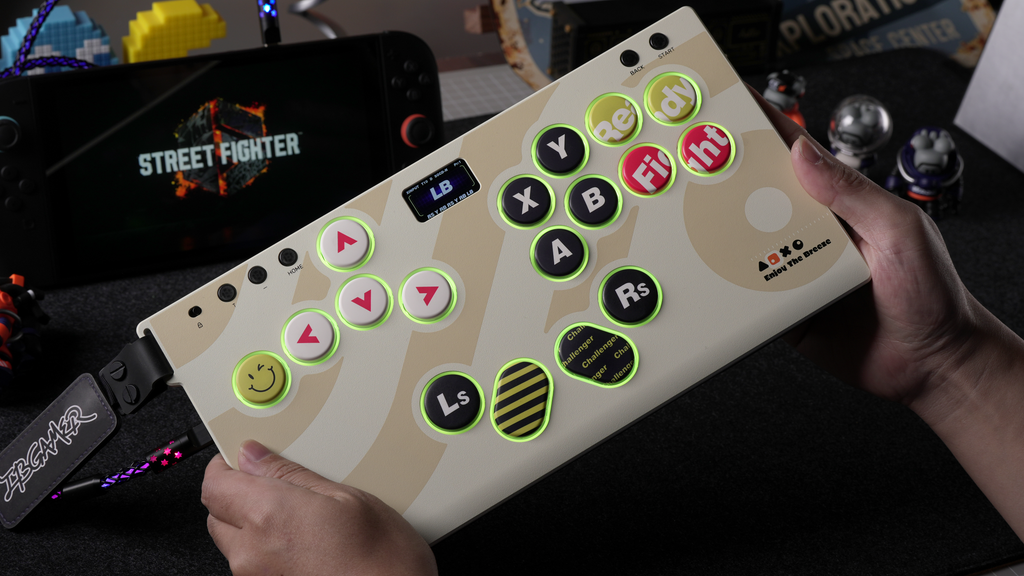
The HautePad Emotion 17 features 17 buttons, offering extra flexibility for assigning attacks and additional actions. Customize bindings to keep frequently used inputs within easy reach. Adjust a few at a time and test them before making further changes. Check how Drive Impact and Drive Parry are assigned, as they may use dedicated buttons or combinations depending on your layout and control type.
Set Up the Directional Inputs
Unlike a traditional arcade stick, a leverless controller uses individual buttons for Left, Right, Down, and Up. Their physical positions vary between models, so identify each direction before practicing special moves.
Test the four directions in-game and confirm that your character responds as expected. Remember that left and right are relative to your character’s position: after switching sides, the direction toward your opponent changes.
Use the game’s input display to verify the directions being received, especially if your character moves unexpectedly. This helps you confirm that your directional buttons are mapped correctly before moving on to more complex inputs.
Choose Button Layout That Works for You
Once the controller is connected and the game recognizes its inputs, you can focus on how the layout feels during play.
Leverless controllers do not all use the same physical arrangement. Even when two controllers have the same number of buttons, the spacing and positioning can differ.
Understand the Standard Layout
A typical leverless controller separates movement inputs from attack inputs.
One hand usually handles directional movement, while the other handles attacks and additional actions. However, the exact finger placement depends on the controller’s design and your own comfort.
For example, a controller may place the up button below the other directional buttons, allowing you to press it with your thumb. Another design may use a different arrangement or separate the left and right movement areas.
Before settling on a layout, identify which buttons control movement and which control attacks. Spend a little time pressing each button individually so that you can recognize its position without constantly looking down.
This is particularly useful when you are learning a new controller. Trying to memorize the entire layout during a real match can make it harder to concentrate on your opponent.
Adjust for Your Controller
The best way to get familiar with your layout is to practice simple movements and attacks before attempting complicated combinations.
Start with a few basic actions:
– Move forward and backward.
– Crouch and stand.
– Jump.
– Press each attack button individually.
– Combine movement with a single attack.
Pay attention to whether your fingers feel cramped or whether you frequently press the wrong button.
If a button is difficult to reach, consider whether a different assignment would make sense for your playstyle. However, avoid changing your layout repeatedly during the first few sessions. Frequent changes can make it harder to develop consistent muscle memory.
If your controller has extra buttons, check what they are assigned to before using them. Some may be available for additional in-game actions, while others may have functions determined by the controller itself.
Keep your setup simple at first. You can refine it as you become more familiar with the game and your controller.
Test Your Settings in Training Mode
Training Mode lets you test your leverless controller in a controlled environment before entering a real match. Once your controller is connected and configured, use it to check movement, attacks, and special-move inputs.
Street Fighter 6 also provides an Input History Display, which shows the commands the game receives. This can help you identify input mistakes when practicing more complex moves.
Test Basic Movement
Start with simple directional inputs in Training Mode:
1. Press left, right, down, and up separately.
2. Hold each direction and check your character’s response.
3. Practice moving forward, moving backward, crouching, and jumping.
4. Test blocking by holding away from your opponent.
Remember that left and right depend on which side your character is facing. After switching sides, the direction used to move toward your opponent will change.
If your character jumps when you intend to crouch, or moves in an unexpected direction, check the input display to see which direction the game received.
Test Basic Attacks and Special Moves
Next, test your attack buttons individually. In Classic Controls, confirm that the six primary attacks—Light, Medium, and Heavy Punch and Kick—produce the intended actions.
Once basic attacks work, choose a simple special move from your character’s command list and practice it slowly. Pay attention to the order of directional inputs and when you press the attack button.
If the move does not come out, check the Input History Display before changing your controller settings. Look for missing directions, incorrect inputs, or an attack button pressed too early or too late.
When you can perform the move consistently, try a short combo from Combo Trials or your character’s command list. Start with a simple sequence and add more inputs as you become comfortable.
Check Your Control Settings
Street Fighter 6 offers Classic, Modern, and Dynamic control types. Classic uses the traditional six-button attack layout, while Modern includes simplified special-move inputs and an Assist button. Dynamic is available only in selected offline modes.
Because Classic and Modern use different input systems, make sure you are practicing commands that match your selected control type. Check your character’s command list and in-game control display rather than assuming every Classic input works the same way in Modern.
If you switch control types, test the new inputs in Training Mode before entering a match. This helps you become familiar with the controls and confirm that your chosen configuration works as expected.
A Quick Pre-Match Checklist
Before entering Ranked or another online mode, take a moment to confirm that your controller and game settings are ready.
Use this checklist:
– The controller is recognized by your PC or console.
– The correct connection mode is selected, if your controller supports multiple modes.
– Left, right, down, and up produce the expected directional inputs.
– Your attack buttons are assigned correctly.
– Your selected control type matches the commands you intend to use.
– You have tested basic movement and attacks in Training Mode.
– You have practiced at least one special move using your character’s command list.
– If you are using a console, you have confirmed the controller’s compatibility and any converter requirements.
You do not need to master every command before playing online. The purpose of this checklist is simply to make sure that your controller is working and that you understand your current settings.
If something feels unfamiliar during a match, return to Training Mode and test it in a more controlled environment.
Conclusion
Setting up a leverless controller for Street Fighter 6 is mainly about confirming the connection, understanding your button layout, configuring your controls, and testing the inputs before playing.
Start with basic movement and attack buttons. Once those work consistently, move on to special moves and short combos in Training Mode. Use the input display to understand what the game is receiving, and make changes to your configuration only when you have identified something that needs adjusting.
Every all-buttons controller has its own physical layout, so give yourself time to become familiar with the buttons. A setup that is easy for you to understand and use consistently is a practical starting point for improving your SF6 experience.
FAQ
Can I use leverless controller on PS5?
That depends on the specific controller and its compatibility requirements. Some controllers require a compatible converter or adapter. Check the manufacturer’s instructions before connecting it to your PS5.
Do I need to change button settings in Street Fighter 6?
Not necessarily. If the default assignments match your controller’s layout and preferred control type, you may be able to use them as they are. Review the settings and change only what you need.
How can I test my leverless controller before a match?
Use Training Mode to test each directional input and attack button separately. Then practice basic movement and a few special moves. The input display can help you check which commands the game is receiving.
Can I use the same settings for Classic and Modern Controls?
Classic and Modern use different attack and special-move input systems, so you should review the relevant button configuration when switching between them. Check the in-game settings and character command list to confirm which inputs are available.